Booking.com photo requirements at a glance
These are the points Booking.com states on its own partner help pages. Links to each page are in the sources at the end.
| Topic | What Booking.com says | Where |
|---|---|---|
| Resolution | At least 2048 x 1080 pixels, preferably 4000 x 3000 | Partner help: Understanding photo requirements for your property |
| Smallest shown | Photos of 300 x 300 pixels or smaller are not displayed | Partner help: Why are some photos not showing on my page? |
| Orientation | Landscape (horizontal) only | Partner help: Understanding photo requirements for your property |
| Number of photos | At least 10, with at least four of each room or unit and one of the bathroom and toilet | Partner help: Understanding photo requirements for your property |
| Recommended total | Guests like to see at least 24 photos; only the first 45 appear in the gallery | Partner help: Why are some photos not showing on my page? |
| Order | Drag to reorder in the Extranet; the order shown to guests can differ | Partner help: How do I change the order of my photos? |
Resolution: aim high
Booking.com's pages give more than one figure. Its photo requirements page asks for at least 2048 x 1080 pixels and prefers 4000 x 3000, another help page recommends at least 1280 x 900, and photos too small (300 x 300 pixels or less) are not shown at all. Aim for the highest figure.
Any recent phone shoots well above 2048 x 1080. Quality is usually lost later, when photos are forwarded through messaging apps, screenshotted or cropped hard, so upload the original files.
How many photos to upload
Booking.com asks partners to take at least 10 photos, with at least four of each room or unit and at least one of the bathroom and toilet. A separate help page says guests like to see at least 24 photos per property, and that only the first 45 are shown in the photo gallery.
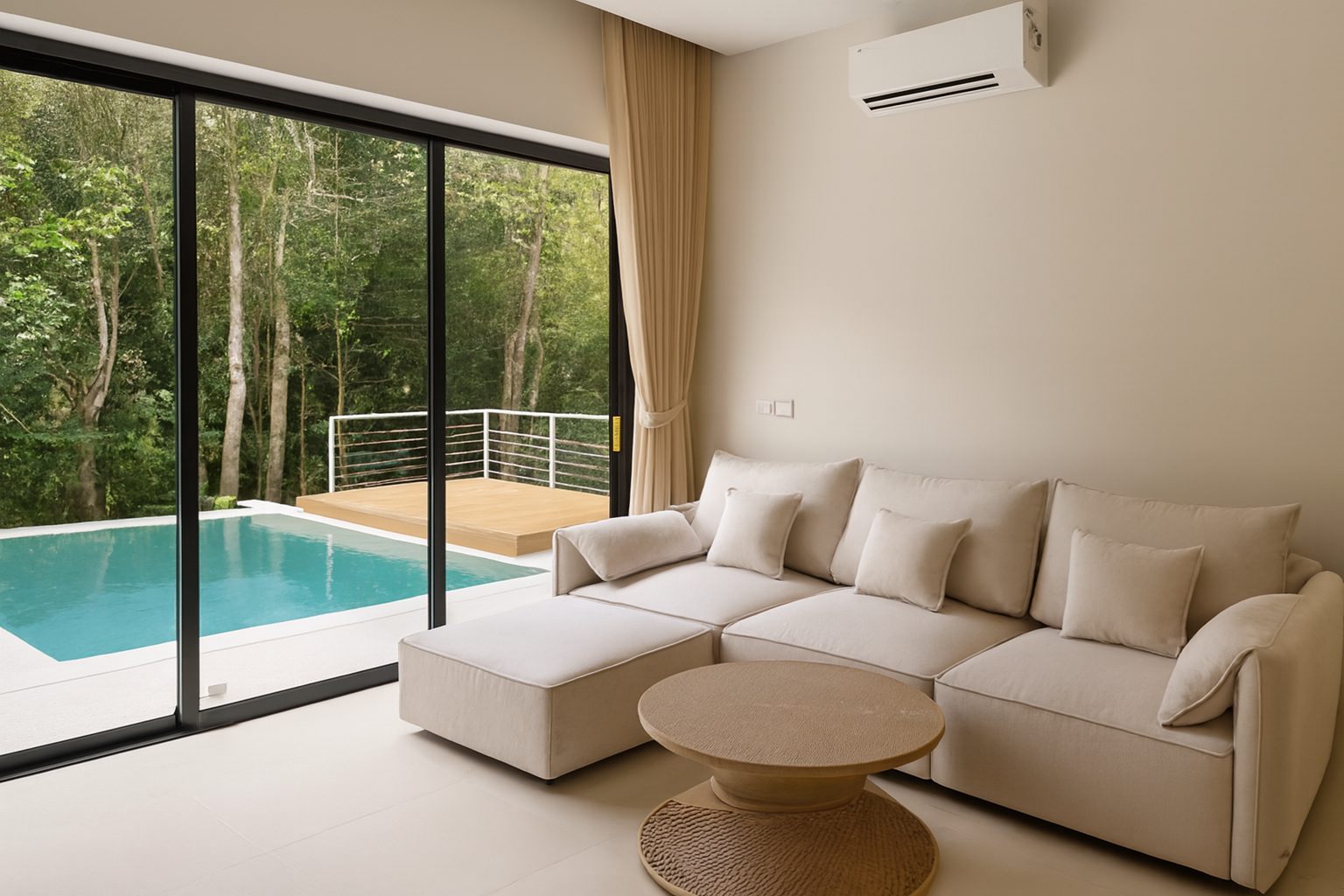
For a small apartment, that usually means several angles of the main living space and bedroom, the bathroom, the kitchen, the view or outdoor space and the building entrance, rather than many near-identical shots.
How Booking.com suggests you shoot
Booking.com's own tips are simple, and a smartphone with a good camera is enough to follow them:
- Shoot landscape (horizontal) photos only
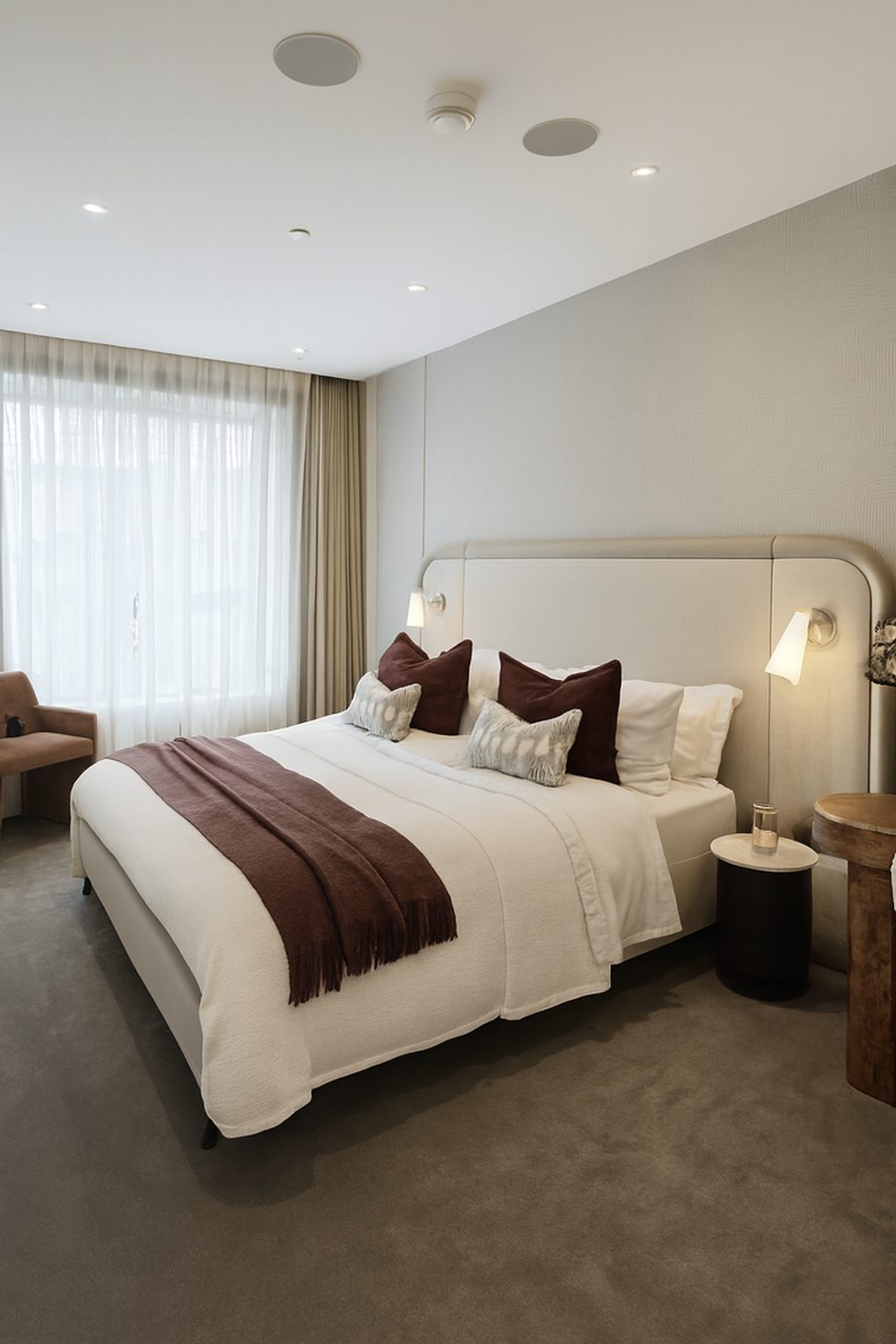
- Shoot from the corners of the room to add perspective and depth
- Take photos from several angles
- Turn on ambient lighting and lamps
- Keep road signs, parked cars and recognisable people out of the frame
What to avoid
Booking.com lists these among the photos to avoid uploading:
- Photo collages
- Watermarks, logos, text or illustrations in photos
- Over-processed photos: filters, strong contrast, over-saturation or excessive HDR
- Skewed, tilted, stretched or distorted photos
- Black-and-white photos
- Extreme wide-angle or fisheye shots
- Grainy, pixelated, blurry or tilt-shift photos
Editing without overdoing it
Most of Booking.com's list is about over-editing: filters, heavy HDR, over-saturation and distortion. It also asks partners to choose photos that set accurate expectations for guests. The pages we checked do not mention AI editing by name.
That favours a light, accurate finish: correct exposure, neutral colour and straight verticals, with nothing added or removed. That is what ProLister does. It fixes light, colour and lines, and keeps the room exactly as it is.
Photo order
You can drag photos into the order you want in the Extranet. Booking.com notes that the order guests see can sometimes differ, because it uses smart ordering by default. Put your strongest, most representative photo first anyway.
Check your photos before you upload
Run your gallery through the free Listing Photo Checker to catch dark rooms, tilted lines and missing spaces, then fix what you can before you publish.
Frequently asked questions
What resolution does Booking.com require for photos?
Booking.com's photo requirements page asks for at least 2048 x 1080 pixels, preferably 4000 x 3000. Photos of 300 x 300 pixels or smaller are not displayed.
How many photos should I upload to Booking.com?
At least 10, including at least four of each room or unit and one of the bathroom and toilet. Booking.com says guests like to see at least 24 photos, and only the first 45 appear in the gallery.
Can I add my logo or a watermark to Booking.com photos?
Booking.com recommends photos without logos, watermarks or text, and lists watermarks among the things to avoid.
Does Booking.com allow HDR photos?
It lists excessive HDR, filters, strong contrast and over-saturation among things to avoid. Keep edits natural, so the photo looks like the room on a bright day.
Can I upload vertical photos to Booking.com?
Booking.com asks partners to shoot landscape (horizontal) photos only, because they look best on its platform.
What changed, and what did not
This panel describes how ProLister's own enhancement behaves, based on our product testing on real listing photos. It is not independent industry research.
What changed in the photo
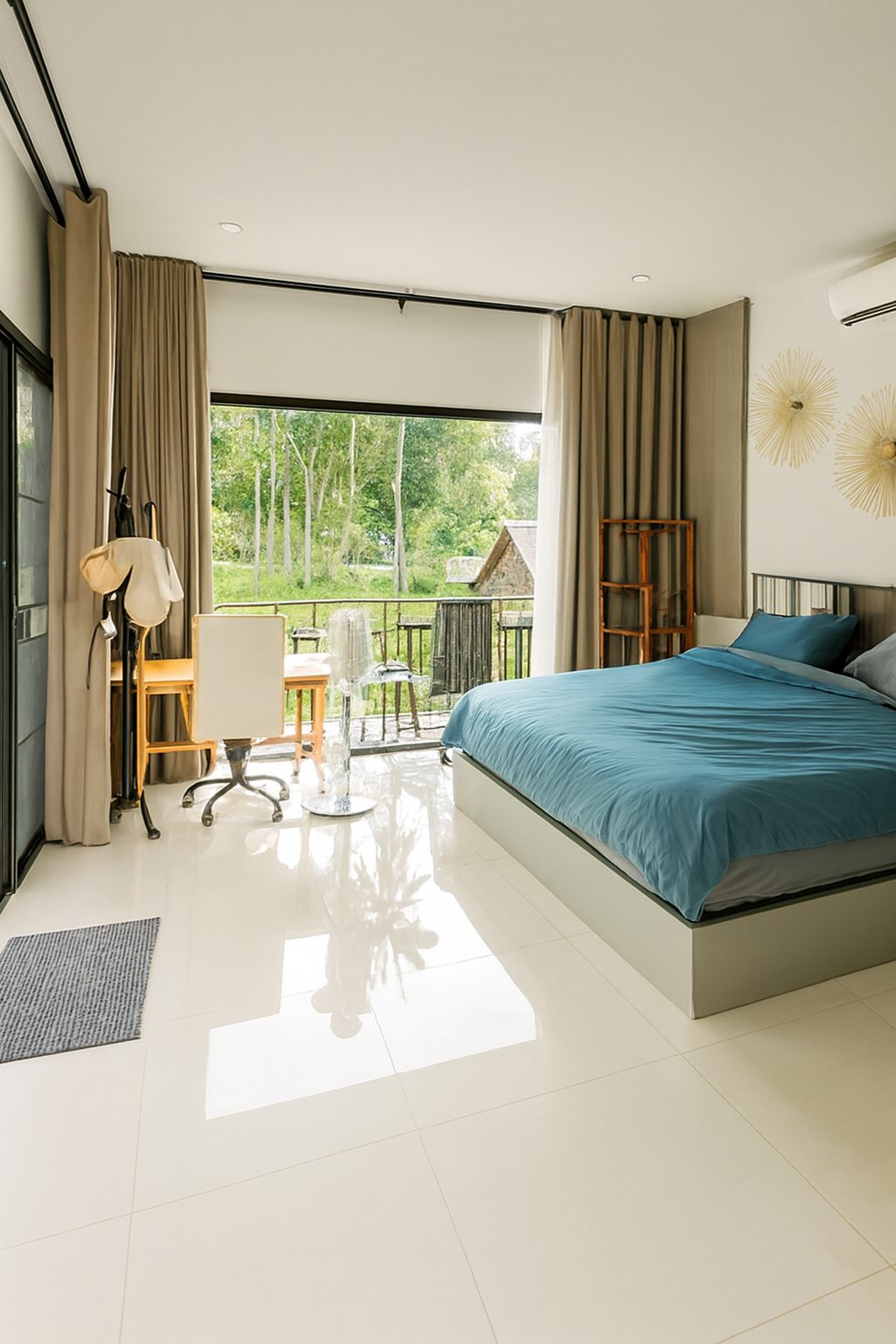
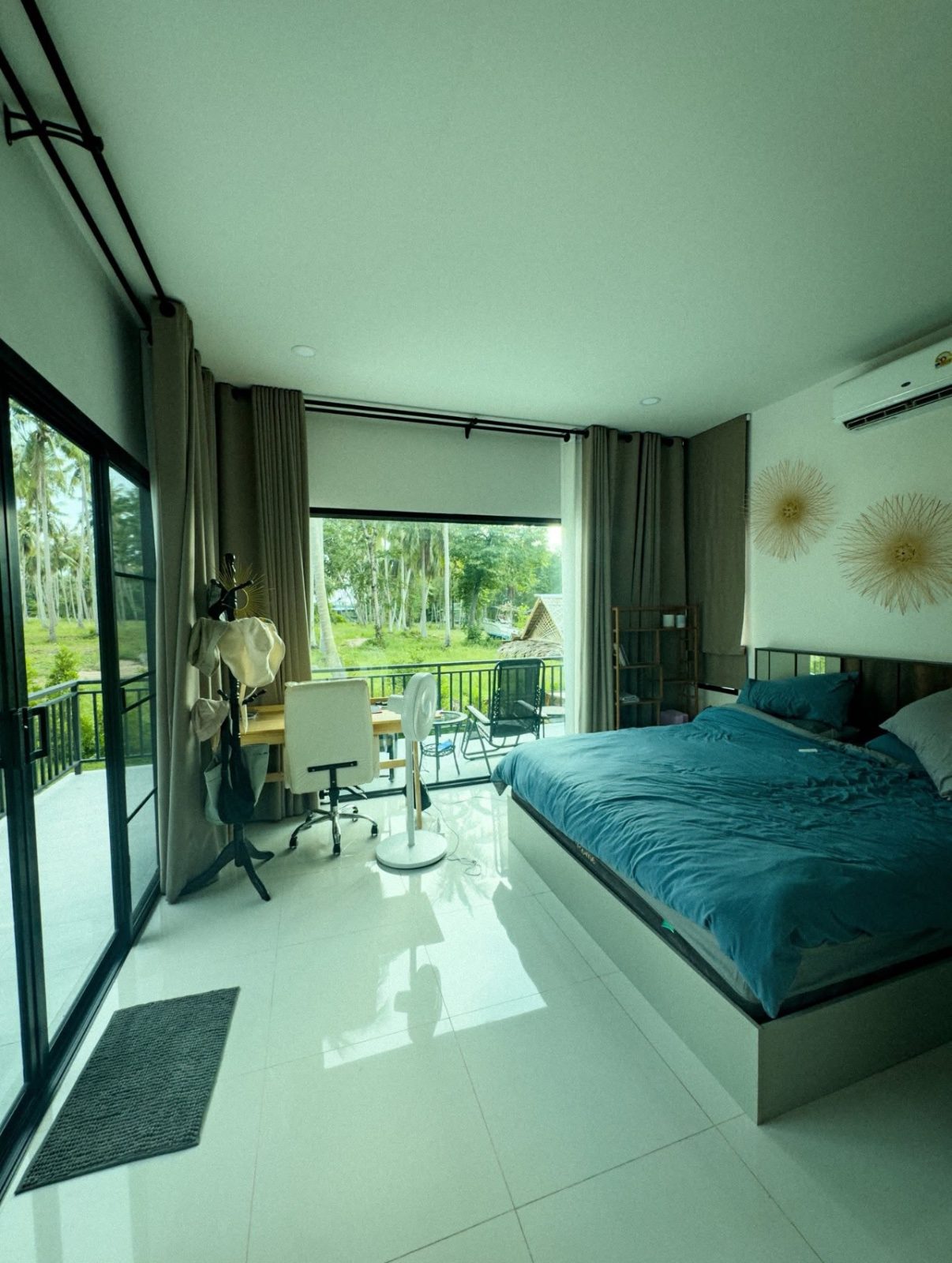
- Brightness and shadow detail in dark areas
- Colour temperature (orange or blue casts neutralised)
- Contrast and clarity
- Window exposure, so the view outside is visible
- Vertical alignment of walls and door frames
- Digital noise in darker rooms
What did not change
- The room's layout, dimensions and architecture
- Furniture, appliances and decor
- Wall, floor and worktop finishes and materials
- The view through the windows
- The property's condition, including wear and damage
- Anything the camera did not capture in the original frame
What AI can and cannot safely do to a listing photo
| Edit | Safe to publish? |
|---|---|
| Correct exposure, colour, contrast and verticals | Yes - standard photographic finishing |
| Recover blown-out windows and shadow detail | Yes - shows what a visitor's eye would see |
| Unify brightness and colour across a photo set | Yes - presentation only |
| Add or remove furniture, or restyle a room | Only as clearly labelled virtual staging |
| Erase damage, damp, cracks or wear | No - misrepresents the property's condition |
| Replace views, skies or seasons | No - changes what the property offers |
| Stretch or widen a room's apparent size | No - misrepresents the space |
The "safe" column reflects platform accuracy rules (see the sources below) and our editorial recommendation. Always check the current policy of each platform, MLS and local regulation you list on.